

Blog
Update a content of an email message used in a Flow
Tested instruction on how to successfully update an email, and make sure recipients get the right version
Let’s say it’s a Monday morning, you are sipping your well-deserved coffee with satisfaction, because you’ve just launched a new email campaign. Actually, it was ready to go live at the end of last week, but you have been here before, and you know that you’d better not deploy on Friday… ;)
Unfortunately, soon you realise that you have missed one important content block in your email. That would probably mean your coffee was not as well deserved as you initially thought… So let’s use a different scenario - you receive a message from a stakeholder with a change request.
Sounds familiar, right? But how do you handle it in Salesforce Marketing Cloud Next? How can you make sure that once the content is updated, the Flow really sends the correct version of your message?
So many questions, but I did some digging recently and now I can walk you through this. Let’s dive in!
Step 1 - decide whether to pause the Flow
Depending on the sensitivity of the required change and the frequency of Flow runs, you might want to pause it so that no new records receive the incorrect version of the email.
However, there is one important thing to remember - a Paused Flow is still considered Active.
In practice, this means that new records can enter it if they satisfy the entry criteria. For instance, you have configured a Segment-Triggered Flow that runs daily, and its audience is a Segment that refreshes immediately before each run. In this scenario, when you pause the Flow before the next scheduled run, new records will enter the Flow once the right time comes, but they will stop at the first element of the process. Even if the first step is a Send Email Message element, the process will stop before executing the send.
Step 2 - update an Email
Once you have decided how to proceed with the Flow, move on to updating the message content.
The key thing here is that once you introduce a required change, it is not enough to simply Save the asset. For the update to be properly evaluated during the next send, it is essential to Publish the new version. It is clearly visible in the “Versions” tab of a respective email asset.
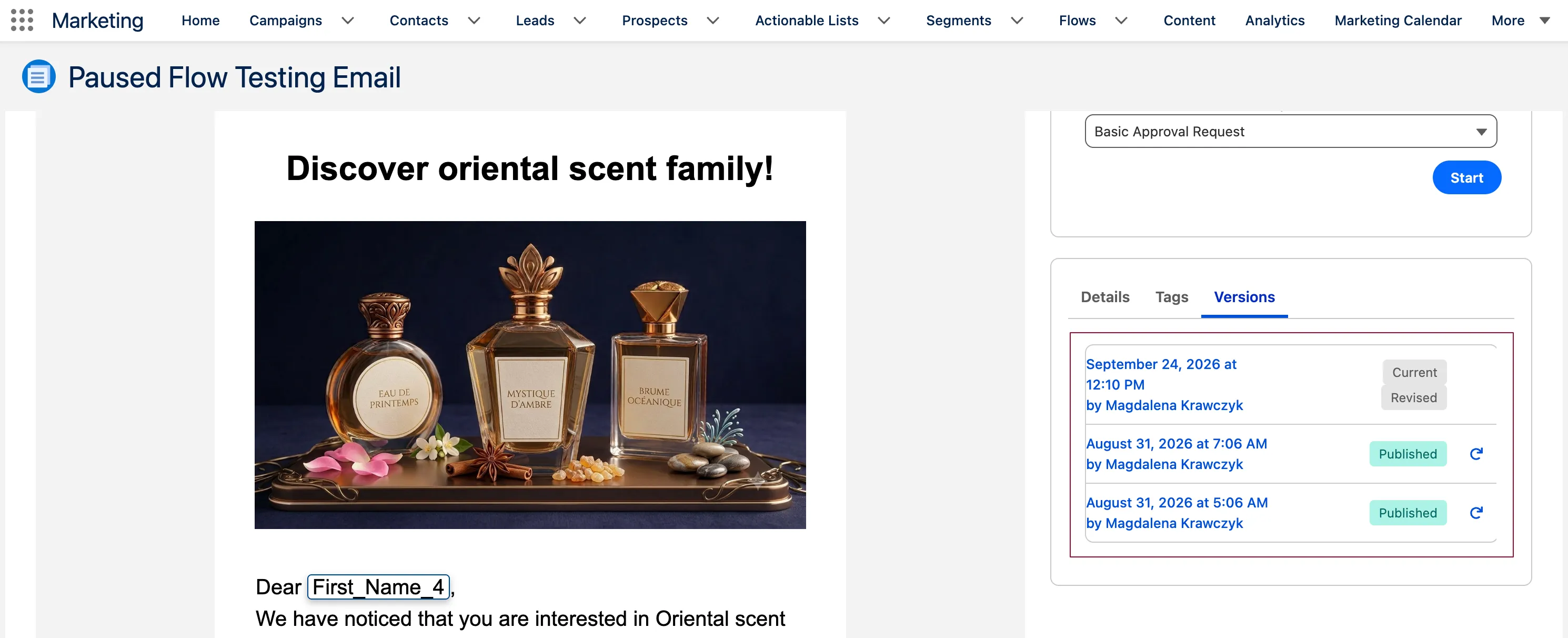
Introducing a change and saving an email creates a new version of the asset. However, even though the new version is marked as “Current”, recipients will still get the latest published version.
There is one additional gotcha here - the process described above is sufficient if you provide changes directly in the email content. A few extra steps are required if you update a Content Block that is embedded in an email canvas.
In such a scenario, both the Content Block and the email asset must be published. But here’s the catch - if the requested change applies only to a Content Block, and nothing else in the email itself requires update, the Publish option for the email is greyed out.
To overcome this obstacle, simply add a temporary change to the email and save it. At this point, the “Publish” button should now be available. Before you use it, make sure to remove the temporary change and save the email again. Then, hit “Publish”. Done!
Step 3 - Resume a Flow, if Paused
If, like me, you have experience with Marketing Cloud Engagement, you might start to wonder if resuming your Flow is enough. That would be a fair question since, in the case of emails sent with Journey Builder, an updated message would be delivered only if you re-selected and saved the same email directly in the Email activity details.
The good news is that with Marketing Cloud Next you no longer need to update the message directly in the Flow canvas. Publishing the content in the CMS Workspace already does the job.
That’s a significant advantage of Marketing Cloud Next. Honestly, it’s also a big relief - executing such an update on this platform would actually require creating a new version of the Flow, since changes cannot be introduced once a Flow is Active, and, let me say it again, even a Paused Flow is still considered Active.
Step 4 - the updated message goes out
There is one final topic that might raise some concerns. Well, at least it concerned me and my OCD, so I decided to test it ;)
In Step 1, I mentioned that even when a Flow is Paused, new records can still enter it and get queued. So what will happen if, for instance, you paused a recurring Segment-Triggered Flow for two runs? You see that new records have been added to the Flow, but you know that a content change was introduced and published only after the first planned occurrence.
What will be the platform behaviour in this case? Will these recipients receive different email versions?
A short answer is no. All of them will get the updated version of the message, even if the change was published after they had been queued in the Flow. The content is evaluated when the Send Email Message element is executed, which happens only once the Flow is resumed.
Summary
Once you complete these steps, you can go back to your coffee.
Personally, despite the inconveniences that arise when updating a separate Content Block embedded in an email asset, I find this new approach more user-friendly than what we know from Marketing Cloud Engagement. From my perspective, it is far more intuitive to publish the content right after saving it than to remember to refresh it also in the Journey Builder canvas.